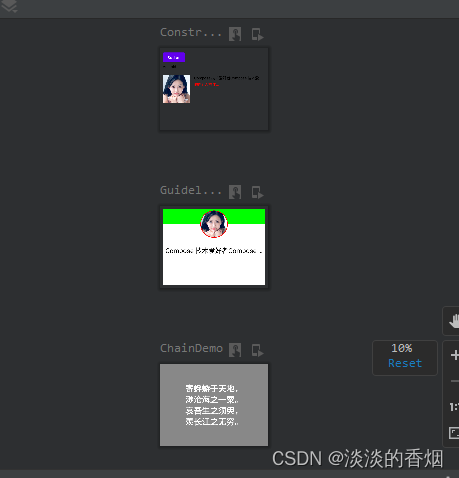
网站建设可用性2022双11各大电商平台销售数据
JetpackCompose从入门到实战学习笔记8—ConstraintLayout的简单使用
1.简介:
Compose 中的 ConstraintLayout
ConstraintLayout 是一种布局,让您可以相对于屏幕上的其他可组合项来放置可组合项。它是一种实用的替代方案,可代替使用多个已嵌套的 Row、Column、Box 和其他自定义布局元素这种做法。在实现对齐要求比较复杂的较大布局时,ConstraintLayout 很有用。
在以下情况下,考虑使用 ConstraintLayout:
- 为了避免在屏幕上定位元素时嵌套多个
Column和Row,以便提高代码的可读性。 - 相对于其它可组合项来定位可组合项,或根据引导线、屏障线或链来定位可组合项。
在 View 系统中,建议使用 ConstraintLayout 来创建复杂的大型布局,因为扁平视图层次结构比嵌套视图的效果更好。不过,这在 Compose 中不是什么问题,因为 Compose 能够高效地处理较深的布局层次结构。
2.在build.gradle中添加依赖:
implementation "androidx.constraintlayout:constraintlayout-compose:1.0.1"
3.可组合项简单使用:
@Composable
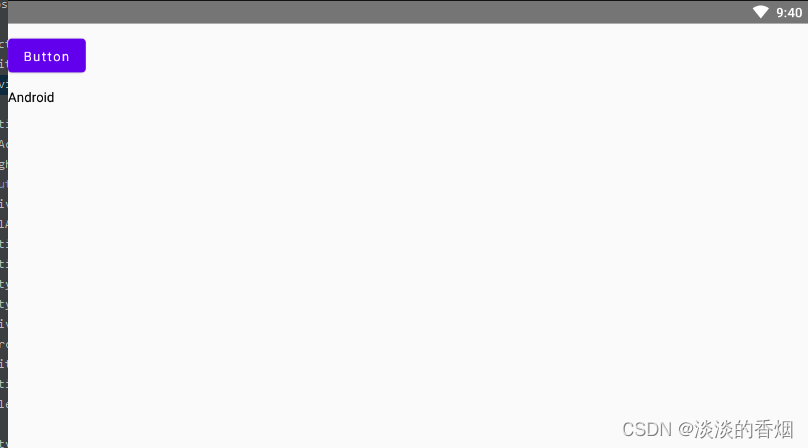
fun ConstraintLayoutContent() {ConstraintLayout {// Create references for the composables to constrainval (button, text) = createRefs()Button(onClick = { /* Do something */ },// Assign reference "button" to the Button composable// and constrain it to the top of the ConstraintLayoutmodifier = Modifier.constrainAs(button) {top.linkTo(parent.top, margin = 16.dp)}) {Text("Button")}// Assign reference "text" to the Text composable// and constrain it to the bottom of the Button composableText("Android", Modifier.constrainAs(text) {top.linkTo(button.bottom, margin = 16.dp)})}
}
4.效果如下:
5.Barrier分界线:
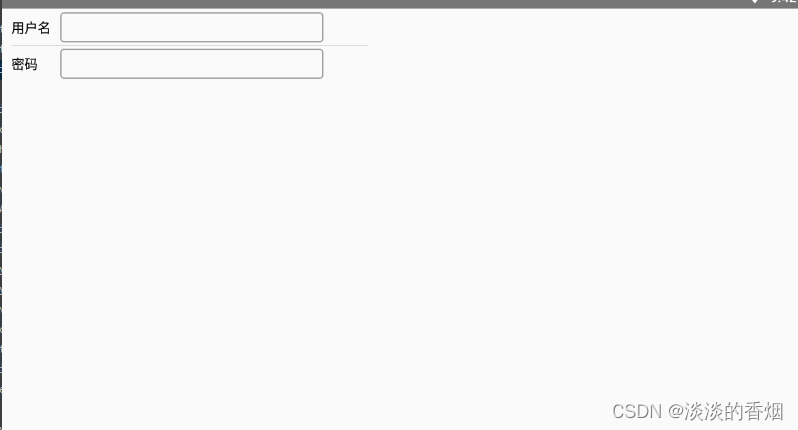
@Preview@Composablefun InputFieldLayoutDemo() {ConstraintLayout(modifier = Modifier.width(400.dp).height(100.dp).padding(10.dp)) {val (usernameTextRef, passwordTextRef, usernameInputRef, passWordInputRef, dividerRef) = remember { createRefs() }var barrier = createEndBarrier(usernameTextRef, passwordTextRef)Text(text = "用户名",fontSize = 14.sp,textAlign = TextAlign.Left,modifier = Modifier.constrainAs(usernameTextRef) {top.linkTo(parent.top)start.linkTo(parent.start)})Divider(Modifier.fillMaxWidth().constrainAs(dividerRef) {top.linkTo(usernameTextRef.bottom)bottom.linkTo(passwordTextRef.top)})Text(text = "密码",fontSize = 14.sp,modifier = Modifier.constrainAs(passwordTextRef) {top.linkTo(usernameTextRef.bottom, 19.dp)start.linkTo(parent.start)})OutlinedTextField(value = "",onValueChange = {},modifier = Modifier.constrainAs(usernameInputRef) {start.linkTo(barrier, 10.dp)top.linkTo(usernameTextRef.top)bottom.linkTo(usernameTextRef.bottom)height = Dimension.fillToConstraints})OutlinedTextField(value = "",onValueChange = {},modifier = Modifier.constrainAs(passWordInputRef) {start.linkTo(barrier, 10.dp)top.linkTo(passwordTextRef.top)bottom.linkTo(passwordTextRef.bottom)height = Dimension.fillToConstraints})}}
6.效果如下:
7.GuideLine引导线:
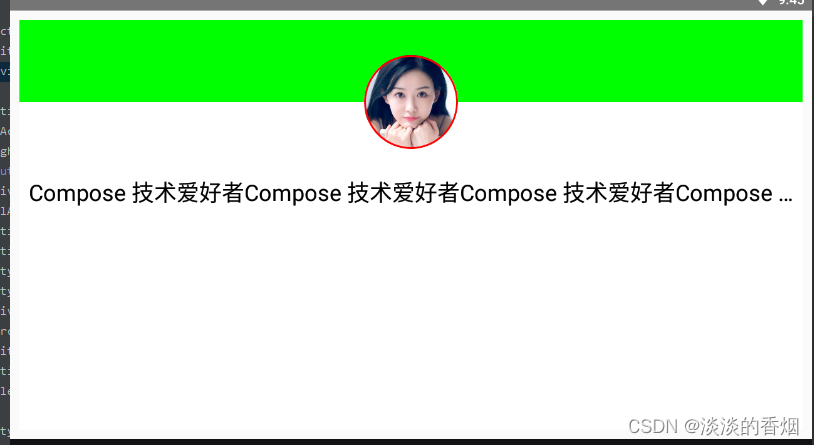
@Preview@Composablefun GuidelineSample(){ConstraintLayout(modifier = Modifier.fillMaxSize().padding(10.dp).background(Color.White)) {val topGuideline = createGuidelineFromTop(0.2f)var (userPortraitBackgroundRef, userPortraitImgRef, welcomeRef, quotesRef) = remember { createRefs() }Box(modifier = Modifier.background(Color.Green).constrainAs(userPortraitBackgroundRef) {top.linkTo(parent.top)bottom.linkTo(topGuideline)height = Dimension.fillToConstraintswidth = Dimension.matchParent})Image(painter = painterResource(id = R.mipmap.avatar),contentDescription = stringResource(R.string.description),contentScale = ContentScale.Crop,modifier = Modifier.constrainAs(userPortraitImgRef){top.linkTo(topGuideline)bottom.linkTo(topGuideline)start.linkTo(parent.start)end.linkTo(parent.end)}.size(100.dp).clip(CircleShape).border(width = 2.dp, color = Color.Red, shape = CircleShape))Text(text = "Compose 技术爱好者Compose 技术爱好者Compose 技术爱好者Compose 技术爱好者Compose 技术爱好者Compose ",fontSize = 24.sp,maxLines = 1,textAlign = TextAlign.Center,overflow = TextOverflow.Ellipsis,//1行显示不下时是否显示。。。modifier = Modifier.constrainAs(welcomeRef) {top.linkTo(userPortraitImgRef.bottom, 30.dp)start.linkTo(parent.start)end.linkTo(parent.end)width = Dimension.preferredWrapContent})}}//这里有个小技巧:若要想TextView一行铺满但没有完全显示且显示。。。时设置 overflow = TextOverflow.Ellipsis属性
8.效果如下:
9.Chain链接约束:
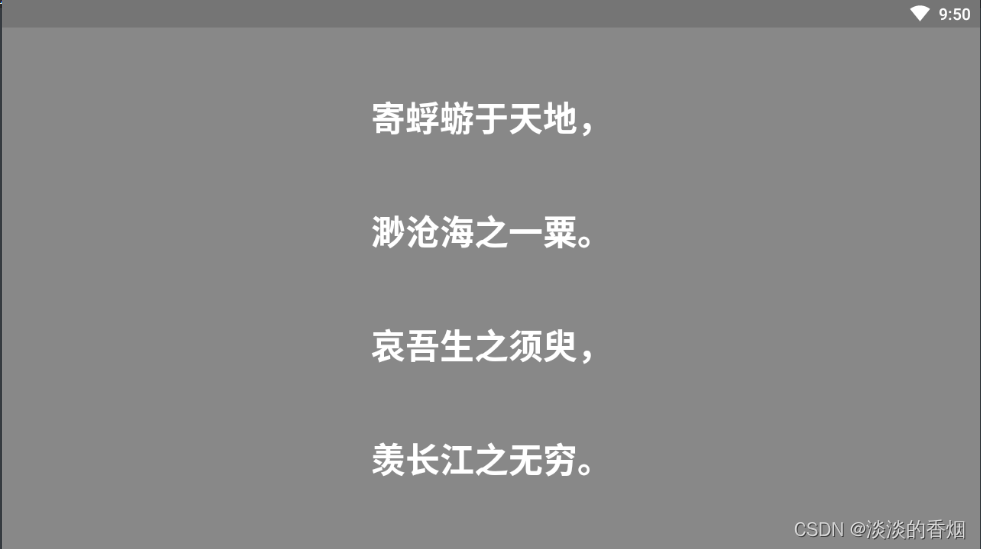
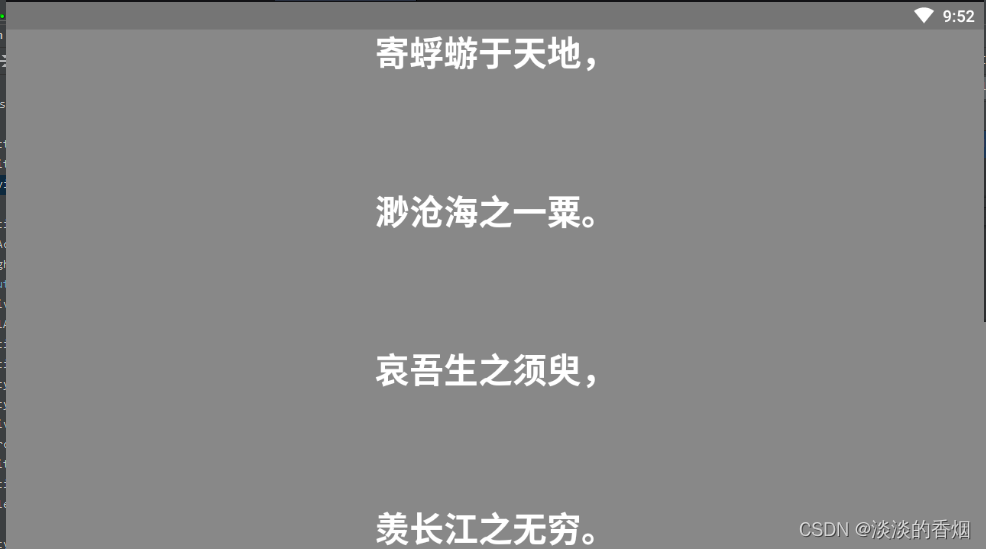
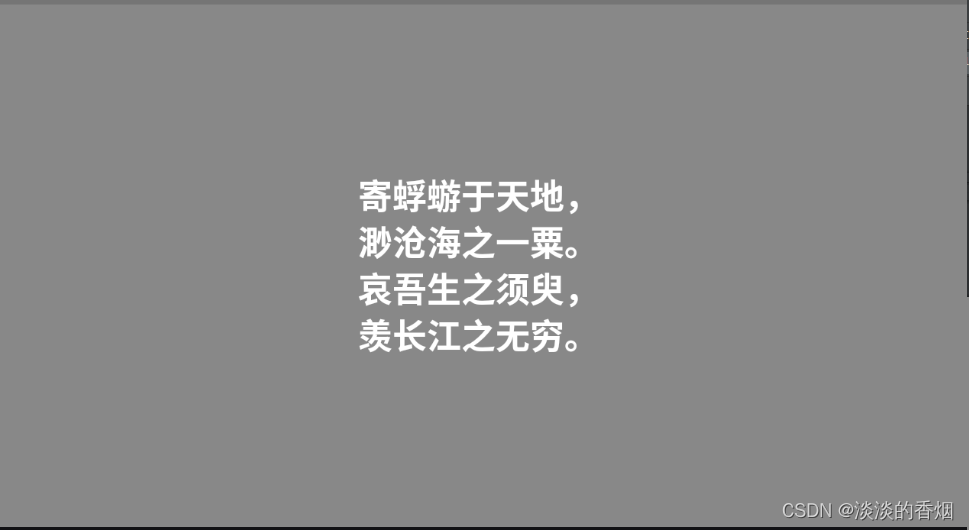
/*** Chain链接约束,Compose提供了ChainStyle* 1.Spread:链条中美国元素均分整个parent空间。* 2.SpreadInside:链条中首尾元素紧贴边界,剩下每个元素平分整个parent空间。* 3.Packed:链条在所有元素聚焦到中间。*/@Preview@Composablefun ChainDemo() {ConstraintLayout(modifier = Modifier.fillMaxSize().background(Color.Gray)) {val (quotesFirstLineRef, quotesSecondLineRef, quotesThirdLineRef, quotesForthLineRef) = remember { createRefs() }createVerticalChain(quotesFirstLineRef, quotesSecondLineRef, quotesThirdLineRef, quotesForthLineRef,chainStyle = ChainStyle.SpreadInside)Text(text = "寄蜉蝣于天地,",color = Color.White,fontSize = 30.sp,fontWeight = FontWeight.Bold,modifier = Modifier.constrainAs(quotesFirstLineRef) {start.linkTo(parent.start)end.linkTo(parent.end)})Text(text = "渺沧海之一粟。",color = Color.White,fontSize = 30.sp,fontWeight = FontWeight.Bold,modifier = Modifier.constrainAs(quotesSecondLineRef) {start.linkTo(parent.start)end.linkTo(parent.end)})Text(text = "哀吾生之须臾,",color = Color.White,fontSize = 30.sp,fontWeight = FontWeight.Bold,modifier = Modifier.constrainAs(quotesThirdLineRef) {start.linkTo(parent.start)end.linkTo(parent.end)})Text(text = "羡长江之无穷。",color = Color.White,fontSize = 30.sp,fontWeight = FontWeight.Bold,modifier = Modifier.constrainAs(quotesForthLineRef) {start.linkTo(parent.start)end.linkTo(parent.end)})}}
10.Spread模式效果如下:
- Spread模式:链条中美国元素均分整个parent空间。
11.SpreadInside模式效果如下:
- SpreadInside:链条中首尾元素紧贴边界,剩下每个元素平分整个parent空间。
12.Packed模式效果如下:
- Packed:链条在所有元素聚焦到中间。
13.完整代码如下:
import android.os.Bundle
import android.widget.ScrollView
import androidx.activity.ComponentActivity
import androidx.activity.compose.setContent
import androidx.compose.foundation.Image
import androidx.compose.foundation.background
import androidx.compose.foundation.border
import androidx.compose.foundation.layout.*
import androidx.compose.foundation.shape.CircleShape
import androidx.compose.material.*
import androidx.compose.runtime.Composable
import androidx.compose.runtime.remember
import androidx.compose.ui.Modifier
import androidx.compose.ui.draw.clip
import androidx.compose.ui.graphics.Color
import androidx.compose.ui.layout.ContentScale
import androidx.compose.ui.res.painterResource
import androidx.compose.ui.res.stringResource
import androidx.compose.ui.text.font.FontWeight
import androidx.compose.ui.text.style.TextAlign
import androidx.compose.ui.text.style.TextOverflow
import androidx.compose.ui.tooling.preview.Preview
import androidx.compose.ui.unit.dp
import androidx.compose.ui.unit.sp
import androidx.constraintlayout.compose.ChainStyle
import androidx.constraintlayout.compose.ConstraintLayout
import androidx.constraintlayout.compose.Dimension/*** @auth: njb* @date: 2023/1/17 16:36* @desc:*/
class ConstraintLayoutActivity:ComponentActivity() {override fun onCreate(savedInstanceState: Bundle?) {super.onCreate(savedInstanceState)setContent {// ConstraintLayoutContent()// ConstraintLayoutSample()//InputFieldLayoutDemo()//GuidelineSample()ChainDemo()}}@Preview@Composablefun ConstraintLayoutContent() {ConstraintLayout {// Create references for the composables to constrainval (button, text) = createRefs()Button(onClick = { /* Do something */ },// Assign reference "button" to the Button composable// and constrain it to the top of the ConstraintLayoutmodifier = Modifier.constrainAs(button) {top.linkTo(parent.top, margin = 16.dp)}) {Text("Button")}// Assign reference "text" to the Text composable// and constrain it to the bottom of the Button composableText("Android", Modifier.constrainAs(text) {top.linkTo(button.bottom, margin = 16.dp)})}}@Preview@Composablefun  ConstraintLayoutSample(){ConstraintLayout(modifier = Modifier.width(400.dp).height(300.dp).padding(10.dp)) {// Create references for the composables to constrainval (button, text) = createRefs()Button(onClick = { },// Assign reference "button" to the Button composable// and constrain it to the top of the ConstraintLayoutmodifier = Modifier.constrainAs(button) {top.linkTo(parent.top, margin = 6.dp)}) {Text("Button")}// Assign reference "text" to the Text composable// and constrain it to the bottom of the Button composableText("Android", Modifier.constrainAs(text) {top.linkTo(button.bottom, margin = 6.dp)})val (portraitImageRef, usernameTextRef, desTextRef) = remember { createRefs() }Image(painter = painterResource(id = R.mipmap.avatar),contentDescription = stringResource(R.string.description),contentScale = ContentScale.Crop,modifier = Modifier.constrainAs(portraitImageRef){top.linkTo(parent.top)bottom.linkTo(parent.bottom)}.size(100.dp))Text(text = "Compose 技术爱好者Compose 技术爱好者Compose 技术爱好者Compose 技术爱好者Compose 技术爱好者Compose ",fontSize = 14.sp,maxLines = 1,textAlign = TextAlign.Center,overflow = TextOverflow.Ellipsis,//1行显示不下时是否显示。。。modifier = Modifier.constrainAs(usernameTextRef) {top.linkTo(portraitImageRef.top)start.linkTo(portraitImageRef.end, 10.dp)end.linkTo(parent.end, 10.dp)width = Dimension.preferredWrapContent})Text(text = "我的个人描述...",fontSize = 14.sp,color = Color.Red,fontWeight = FontWeight.Light,modifier = Modifier.constrainAs(desTextRef) {top.linkTo(usernameTextRef.bottom, 5.dp)start.linkTo(portraitImageRef.end, 10.dp)})}}@Preview@Composablefun GuidelineSample(){ConstraintLayout(modifier = Modifier.fillMaxSize().padding(10.dp).background(Color.White)) {val topGuideline = createGuidelineFromTop(0.2f)var (userPortraitBackgroundRef, userPortraitImgRef, welcomeRef, quotesRef) = remember { createRefs() }Box(modifier = Modifier.background(Color.Green).constrainAs(userPortraitBackgroundRef) {top.linkTo(parent.top)bottom.linkTo(topGuideline)height = Dimension.fillToConstraintswidth = Dimension.matchParent})Image(painter = painterResource(id = R.mipmap.avatar),contentDescription = stringResource(R.string.description),contentScale = ContentScale.Crop,modifier = Modifier.constrainAs(userPortraitImgRef){top.linkTo(topGuideline)bottom.linkTo(topGuideline)start.linkTo(parent.start)end.linkTo(parent.end)}.size(100.dp).clip(CircleShape).border(width = 2.dp, color = Color.Red, shape = CircleShape))Text(text = "Compose 技术爱好者Compose 技术爱好者Compose 技术爱好者Compose 技术爱好者Compose 技术爱好者Compose ",fontSize = 24.sp,maxLines = 1,textAlign = TextAlign.Center,overflow = TextOverflow.Ellipsis,//1行显示不下时是否显示。。。modifier = Modifier.constrainAs(welcomeRef) {top.linkTo(userPortraitImgRef.bottom, 30.dp)start.linkTo(parent.start)end.linkTo(parent.end)width = Dimension.preferredWrapContent})}}@Preview@Composablefun InputFieldLayoutDemo() {ConstraintLayout(modifier = Modifier.width(400.dp).height(100.dp).padding(10.dp)) {val (usernameTextRef, passwordTextRef, usernameInputRef, passWordInputRef, dividerRef) = remember { createRefs() }var barrier = createEndBarrier(usernameTextRef, passwordTextRef)Text(text = "用户名",fontSize = 14.sp,textAlign = TextAlign.Left,modifier = Modifier.constrainAs(usernameTextRef) {top.linkTo(parent.top)start.linkTo(parent.start)})Divider(Modifier.fillMaxWidth().constrainAs(dividerRef) {top.linkTo(usernameTextRef.bottom)bottom.linkTo(passwordTextRef.top)})Text(text = "密码",fontSize = 14.sp,modifier = Modifier.constrainAs(passwordTextRef) {top.linkTo(usernameTextRef.bottom, 19.dp)start.linkTo(parent.start)})OutlinedTextField(value = "",onValueChange = {},modifier = Modifier.constrainAs(usernameInputRef) {start.linkTo(barrier, 10.dp)top.linkTo(usernameTextRef.top)bottom.linkTo(usernameTextRef.bottom)height = Dimension.fillToConstraints})OutlinedTextField(value = "",onValueChange = {},modifier = Modifier.constrainAs(passWordInputRef) {start.linkTo(barrier, 10.dp)top.linkTo(passwordTextRef.top)bottom.linkTo(passwordTextRef.bottom)height = Dimension.fillToConstraints})}}/***  Chain链接约束,Compose提供了ChainStyle*  1.Spread:链条中美国元素均分整个parent空间*  2.SpreadInside:*  3.Packed:*/@Preview@Composablefun ChainDemo() {ConstraintLayout(modifier = Modifier.fillMaxSize().background(Color.Gray)) {val (quotesFirstLineRef, quotesSecondLineRef, quotesThirdLineRef, quotesForthLineRef) = remember { createRefs() }createVerticalChain(quotesFirstLineRef, quotesSecondLineRef, quotesThirdLineRef, quotesForthLineRef,chainStyle = ChainStyle.Packed)Text(text = "寄蜉蝣于天地,",color = Color.White,fontSize = 30.sp,fontWeight = FontWeight.Bold,modifier = Modifier.constrainAs(quotesFirstLineRef) {start.linkTo(parent.start)end.linkTo(parent.end)})Text(text = "渺沧海之一粟。",color = Color.White,fontSize = 30.sp,fontWeight = FontWeight.Bold,modifier = Modifier.constrainAs(quotesSecondLineRef) {start.linkTo(parent.start)end.linkTo(parent.end)})Text(text = "哀吾生之须臾,",color = Color.White,fontSize = 30.sp,fontWeight = FontWeight.Bold,modifier = Modifier.constrainAs(quotesThirdLineRef) {start.linkTo(parent.start)end.linkTo(parent.end)})Text(text = "羡长江之无穷。",color = Color.White,fontSize = 30.sp,fontWeight = FontWeight.Bold,modifier = Modifier.constrainAs(quotesForthLineRef) {start.linkTo(parent.start)end.linkTo(parent.end)})}}
}
14.完整效果预览如下: